
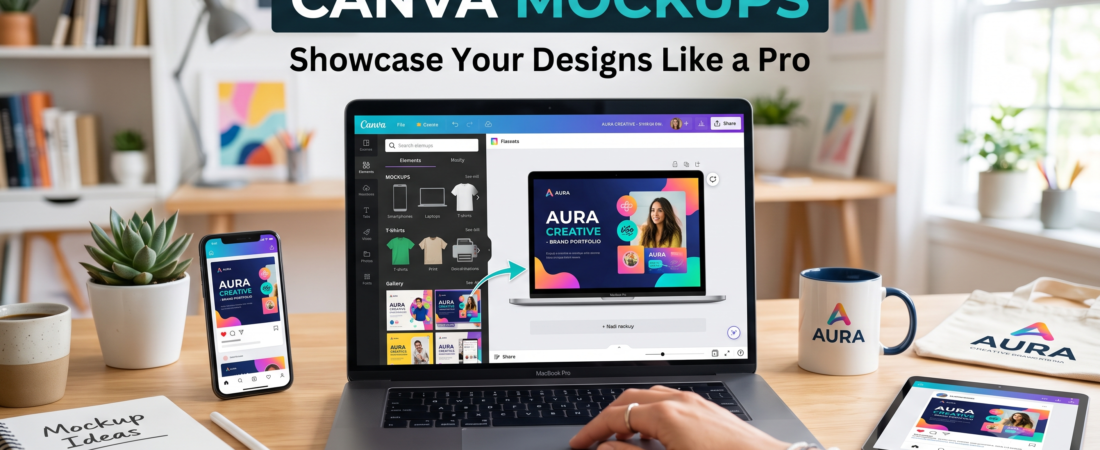
Are you ready to elevate your creative projects? Using Canva mockups can help you present your work in a professional and visually stunning manner. Mastering this art allows you to showcase your unique designs to clients with the same polish as a professional agency.
Every designer knows that a high-quality mockup is essential for turning simple digital files into compelling visual stories. These stories capture audience attention immediately and help your creative designs stand out in a crowded marketplace. By utilizing these tools, you effectively communicate your vision to potential customers.
Whether you are a beginner or a pro, learning to use these features will significantly improve how you display your creative work online. So, let’s dive into the world of mockups and discover how they can transform your design process.

Key Takeaways
- Mockups enhance the presentation of your creative projects.
- They allow you to showcase designs with a professional touch.
- A high-quality mockup turns digital files into visual stories.
- Utilizing mockups helps your designs stand out in the market.
- Both beginners and pros can benefit from mastering these tools.
Understanding Canva Mockups
Step into the realm of professional design with effective mockups. These tools are digital representations that let you visualize your product design in a realistic setting before final production. By using mockups, you can bridge the gap between a flat digital image and a tangible product. This clarity is essential for your branding efforts.
Utilizing mockups saves significant time compared to traditional photography. You can generate professional images without needing a physical studio. The platform provides a vast library of templates, allowing you to place your designs onto various products, from apparel to electronic devices.
Presenting your work through a realistic mockup ensures that clients fully understand the final scale and context of your creative designs. This not only enhances your presentation but also strengthens your branding.
Setting Up Your Canva Account for Mockup Creation
Getting started with your design projects is simple and exciting. First, log in to your account and head to the Apps section. Here, you will find a dedicated mockup library that caters to your creative work.
Searching for specific mockup templates is easy. Just type relevant keywords into the search bar to find the perfect match for your project. The dashboard is user-friendly, allowing you to explore thousands of templates and apps without needing any prior design experience.
Once you select a template, the app automatically prepares your workspace. This feature ensures that your creative process remains efficient and organized. Moreover, organizing your projects within the library makes it easy to retrieve your favorite templates whenever you need to start a new design.
Step-by-Step Guide to Creating a Canva Mockup
Elevate your design process by diving into the world of custom mockups. Creating a stunning mockup is simple and rewarding. Follow these steps to showcase your designs effectively.
Uploading and Positioning Your Design
Start your custom mockup by uploading your file to the platform. Use the drag drop feature to place it into the frame. This intuitive interface makes it easy to get started.
Next, adjust the size and position of your design within the template. Ensure it aligns perfectly with the product’s natural contours for a realistic look.
Customizing the Template Settings
After placing your image, utilize the customization settings. Modify the background or colors to ensure the final result matches your specific brand identity.
The drag drop interface is designed to help you create a professional custom mockup without needing complex software or advanced technical skills. Once satisfied with the positioning, save your progress and prepare the file for final export to your local device.
Customization Tips for Your Canva Mockups
Transforming your designs into stunning visuals requires attention to detail. Customizing your mockups can significantly enhance their appeal. By making precise adjustments, you can ensure that your mockups truly represent your creative vision.
Start by fine-tuning the brightness, contrast, and saturation of your design. These adjustments can dramatically affect how your work is perceived. Additionally, changing the background can place your product in various settings, like a chic office or a vibrant studio.
Experimenting with different colors for your designs or surrounding elements helps create a cohesive look that aligns with your brand. Such subtle adjustments can make your final designs appear more realistic, drawing viewers’ focus to the quality of your work.
Moreover, refining shadows and highlights adds depth to your mockup. This technique makes the final image resemble a professional photograph, enhancing its overall quality.

| Adjustment Type | Description | Impact on Design |
|---|---|---|
| Brightness | Modifies light levels in the design. | Enhances visibility and mood. |
| Contrast | Increases the difference between light and dark areas. | Creates depth and focus. |
| Saturation | Adjusts color intensity. | Influences emotional response. |
| Background Change | Alters the setting of the mockup. | Provides context and enhances storytelling. |
| Shadow & Highlight Refinement | Adjusts depth perception. | Makes the mockup look professionally photographed. |
Leveraging Canva Mockups for Professional Branding
Unleashing the power of mockups can redefine your branding strategy. Professional branding relies on consistency. Using these tools allows users to maintain a uniform look across all their digital marketing assets.
Over 5,000 POD sellers currently utilize these automated features to showcase their products. This proves that efficiency is key to scaling a business. You can create high-quality visuals for your social media channels, ensuring that your brand remains recognizable and engaging to your target audience.
By presenting your products in a professional context, you build trust with potential customers. They want to see exactly what they are buying. Consistent use of these mockups across your website and social media platforms helps establish a strong, memorable identity for your growing business.
| Benefit | Description | Impact on Branding |
|---|---|---|
| Consistency | Uniform appearance across platforms. | Strengthens brand recognition. |
| Efficiency | Quickly showcase products. | Increases productivity for users. |
| Trust | Professional presentation of products. | Builds customer confidence. |
| Engagement | High-quality visuals for social media. | Enhances audience interaction. |
| Identity | Establishes a memorable brand. | Fosters long-term loyalty. |
Enhancing Your Designs with Canva Tools
Unlock the full potential of your designs by leveraging powerful tools at your fingertips. With an extensive library of built-in assets and stock photos, you can easily elevate your mockups to a professional level.
Consider these benefits:
- Access a vast collection of stock photos and graphics to add context to your mockup, making your design feel more authentic.
- Experiment with over 300 design apps to apply new effects that help your final images stand out from the competition.
- Integrate 150+ AI-powered applications to automate repetitive tasks, giving you more time to focus on the creative aspects of your design.
- Utilize high-quality stock photos as backgrounds to create a professional atmosphere that elevates the perceived value of your products.
- These built-in tools work seamlessly together, allowing you to produce stunning designs without ever leaving the platform’s interface.
Troubleshooting and Tips for Common Mockup Issues
Encountering problems with your mockups is not uncommon, but solutions are at hand. Designers often face challenges that can disrupt their workflow. However, with a few quick fixes, you can overcome these hurdles and keep your projects on track.
Quick Fixes for Design Errors
- If you encounter issues with watermarks, ensure that you are using a premium subscription to unlock all features for your final design files.
- When your graphics do not align correctly, use the grid tool to snap elements into place and ensure everything is perfectly centered.
- If your file export fails, check that your internet connection is stable and that you have sufficient storage space for your high-resolution files.
- You can quickly resolve common design errors by checking the layer order, which often dictates how your image interacts with the mockup frame.
- Regularly updating your browser or the mobile app can prevent many technical glitches that might interfere with your mockup creation process.
Comparing Canva’s Mockup Tools with Alternative Options
When it comes to showcasing your designs, understanding the differences between tools can enhance your workflow. While Canva excels in creating 2D designs, there are alternatives that offer unique features worth considering.
For instance, Pacdora stands out with its ability to create 100 mockups in just 40 seconds. This is a significant time saver compared to the 15+ minutes typically required for manual creation. Additionally, users can access over 500 templates and save 66% on a yearly subscription to premium features.
Another key aspect is the ability to export high-resolution images or MP4 videos. This is essential for professionals needing top-quality assets for their websites or print media.
Differences: 2D vs. 3D Mockups
While Canva is ideal for 2D designs, tools like Pacdora provide 3D features. This allows users to view products from multiple angles, enhancing the overall presentation.
When to Consider Other Tools Like Pacdora
- If you need to create videos or 4K images for your website, specialized 3D platforms may offer better options.
- Canva Pro users enjoy a broader range of templates, but for complex apparel or packaging designs, 3D tools might be more beneficial.
- Always evaluate your specific needs, such as whether you require PNG files for print or MP4 videos for social media marketing campaigns.
| Feature | Canva | Pacdora |
|---|---|---|
| Mockup Type | 2D | 3D |
| Creation Speed | 15+ minutes | 40 seconds |
| Export Options | Standard | 4K, MP4 |
| Template Library | Limited | 500+ |
| Subscription Savings | N/A | 66% |
Conclusion
Embrace the art of showcasing your designs with confidence. Mastering these tools allows you to present your products with a professional flair, saving you valuable time during the creative process. Whether you are using basic templates or advanced features, creating realistic mockups is essential for modern branding.
By consistently applying these techniques, you can ensure that your designs always look their best across all digital and print platforms. Remember, practice is key. Continue exploring new features and templates to keep your visual content fresh and engaging for your audience.
Start your journey today and see how these powerful tools can transform the way you present your creative work to the world.
FAQ
What are mockups used for?
Mockups are visual representations of your designs, allowing you to showcase products in a realistic context. They help in presenting ideas effectively to clients or on social media.
How can I create a mockup easily?
You can create a mockup by selecting a template, uploading your design, and customizing it to fit your brand. This process is user-friendly and often involves simple drag-and-drop actions.
Are there any free mockup templates available?
Yes, there are many free mockup templates available online. You can find a variety of options that cater to different styles and needs.
Can I edit my mockup after creating it?
Absolutely! You can make adjustments to your mockup at any time, allowing you to refine your design until it meets your expectations.
What file formats are available for mockups?
Mockups typically come in formats like PNG and JPEG, which are suitable for both digital and print use. This versatility makes them ideal for various applications.
How do I ensure my mockup looks professional?
To achieve a professional look, focus on high-quality images, consistent colors, and appropriate sizing. Additionally, using well-designed templates can enhance the overall presentation.
Can I use mockups for social media marketing?
Yes, mockups are excellent for social media marketing as they help showcase your products in an appealing way, attracting more engagement and interest from your audience.
What are some common issues when creating mockups?
Common issues include misalignment of designs, poor image quality, and difficulty in customizing templates. However, most of these can be easily resolved with a few adjustments.